Implementing Claude Code Plan Mode in Your Own AI Agent
This article was automatically translated from Japanese by AI.
A commonly cited best practice for using Claude Code effectively is the importance of starting with Plan Mode to create a plan first. Rather than diving straight into writing code, organizing what needs to be done before proceeding to implementation helps reduce rework and produce more accurate results.
I wanted to incorporate this Plan Mode mechanism into my own AI Agent, so I recreated it using the Claude Agent SDK. In this article, I’ll explain what Claude Code’s Plan Mode does internally and introduce an implementation that reproduces it in a custom AI Agent.
What is Claude Code’s Plan Mode?
Claude Code’s Plan Mode is a mechanism that provides a planning phase before starting implementation. When a user enables Plan Mode, Claude only reads code and formulates plans — it does not edit files or execute commands at all.
While the implementation and internals are not officially documented, they are described in detail in Armin Ronacher’s article What is Plan Mode?. According to his analysis, the essence of Plan Mode is “custom prompts and system reminders,” and nothing technically complex is going on.
From here, I’ll explain based on the content of that blog post. Internally, Plan Mode consists of three key elements.
Element 1: Constraints via System Reminders
A system reminder is automatically appended to each user message. This reminder contains a strong constraint: “Plan mode is active. The user indicated that they do not want you to execute yet — you MUST NOT make any edits,” along with “This supercedes any other instructions you have received,” explicitly stating that it overrides all other instructions. This means that even if the user says “edit this file,” it will be ignored during Plan Mode.
Element 2: Structured Workflow
A four-phase workflow is embedded as a prompt.
- Initial Understanding — Reading code and asking questions to the user
- Design — Designing the implementation approach
- Review — Checking alignment between the plan and user intent
- Final Plan — Writing to the plan file
Each phase includes instructions to launch Sub Agents such as Explore Agent and Plan Agent in parallel, enabling efficient information gathering and plan formulation.
Element 3: Approval via the ExitPlanMode Tool
After Claude writes the plan to a file, it calls the ExitPlanMode tool to request user approval. This tool does not receive the plan content as a parameter — instead, it automatically reads from the plan file. This ensures that user approval is always required at the point when the plan is complete.
Implementation Strategy for a Custom AI Agent
When recreating Claude Code’s Plan Mode in a custom AI Agent, I followed these principles:
- Write the plan and questions for the user in plan.md
- Have Claude write the plan to a file called
plan.md - If there are questions, write a question section in a structured format
- Have Claude write the plan to a file called
- Proactively identify missing information and ask the user questions
- Instead of filling in gaps with guesses, explicitly present unclear points as questions
- Consolidate everything at the end and obtain approval
- Once all questions are resolved, write out the final plan and obtain user approval before proceeding to the implementation phase
Claude Code has dedicated tools like ExitPlanMode and AskUserQuestion, but in this implementation, I achieve equivalent functionality by parsing the structured format of plan.md programmatically instead of using these tools.
Implementation
A sample implementation is available in the following repository.
The implementation uses the Claude Agent SDK’s Python SDK. I’ll explain the overall flow broken down into four components.
System Prompt
This is the system prompt for the Agent that considers the plan. The key points are giving Claude the role of “a software architect and planning expert” while strictly specifying the format for writing to plan.md.
def build_system_prompt(plan_file: str) -> str:
    return f"""\
You are a software architect and planning expert.
Analyze the user's task and create an implementation plan.

## How to manage the plan
Write the plan directly to `{plan_file}` (using the Write tool).

## Most important rule: Proactively identify missing information
Before creating the plan, **always** check for ambiguity or missing information in the requirements:
...
If there is missing information, **write a question section in `{plan_file}` instead of filling in the gaps with guesses.**
"""
The rule “write a question section instead of filling in gaps with guesses” is particularly important. This ensures that Claude always outputs unclear points as structured questions.
The question format is specified as follows:
## Confirmation Items
The following points need to be confirmed:

### Q1. Which database will you use?
- Background: This affects schema design
- [ ] PostgreSQL
- [ ] SQLite
- [ ] MySQL

### Q2. What are the authentication requirements?
- Background: This affects middleware selection
Questions with options are listed using - [ ], while questions without options are treated as free-text input. This format allows the program to parse them mechanically.
Multi-Turn Loop
This is the core multi-turn loop processing of Plan Mode. Using the Claude Agent SDK’s query() and session resumption (resume), it implements a loop of request -> questions -> answers -> plan update.
async def run_plan_phase(task, cwd, model):
    for turn in range(1, max_turns + 1):
        # Call Claude with query() and continue the conversation with resume
        async for message in query(prompt=current_prompt, options=options):
            session_id = message.session_id

        # Parse plan.md and ask the user if there are questions
        questions = parse_questions(plan_content)
        if questions:
            current_prompt = format_answers(questions, await ask_questions(questions))
        else:
            # If there are no questions, request approval and finish
            if await ask_approval():
                return plan_content
The available tools are limited to Read, Glob, Grep, and Write via allowed_tools. This ensures that, similar to Claude Code’s Plan Mode, only code reading and writing to the plan file are permitted.
The Claude Agent SDK does provide a plan permission mode, but this mode does not allow any tool execution at all. Since this implementation requires the Write tool to write to plan.md, I use allowed_tools for control instead of the plan mode.
By using session resumption (resume), Claude can update plan.md based on previous interactions. Each time a user’s answer is received, it’s passed as a new prompt, progressively refining the plan.
Question Parsing
This is the process for extracting questions from plan.md. It detects ### Q{number}. {question text} patterns within the ## Confirmation Items section using regular expressions and extracts background information and options as structured data.
def parse_questions(plan_content):
    # Extract the "## Confirmation Items" section
    section = re.search(r"## Confirmation Items\n(.*?)(?=\n## |\Z)", plan_content, re.DOTALL)
    # Split by "### Q1. question text" blocks and parse background/options
    for block in re.split(r"(?=### Q\d+\.)", section.group(1)):
        header = re.match(r"### Q(\d+)\.\s*(.+)", block)
        choices = re.findall(r"- \[ \]\s*(.+)", block)
        ...
When there are no more questions (i.e., the ## Confirmation Items section no longer exists), the plan is considered complete and the flow proceeds to the approval step. This is the mechanism equivalent to Claude Code’s ExitPlanMode.
User Interaction
For user-facing questions, I use the questionary library. Questions with options display a UI where users can select with arrow keys, while questions without options accept free-text input. Here is an example of the output during execution:
Q1. Which API will you use as the weather forecast data source?
   Background: Different weather APIs provide different information and require different authentication (API keys).

? Select your answer for Q1: (Use arrow keys)
 » Open-Meteo API (free, no API key required, global weather data)
   OpenWeatherMap API (free tier available, API key required, popular)
   JMA API (unofficial, no API key required, Japan only)
   Other (free text)
The approval flow after plan completion presents three choices: “Approve / Request modifications / Cancel.” If modifications are requested, the feedback is passed to Claude and the flow returns to the plan update loop.
Demo
As a test, I submitted a rough request — “I want to write Python code that displays the weather forecast” — and had it produce a more detailed execution plan.
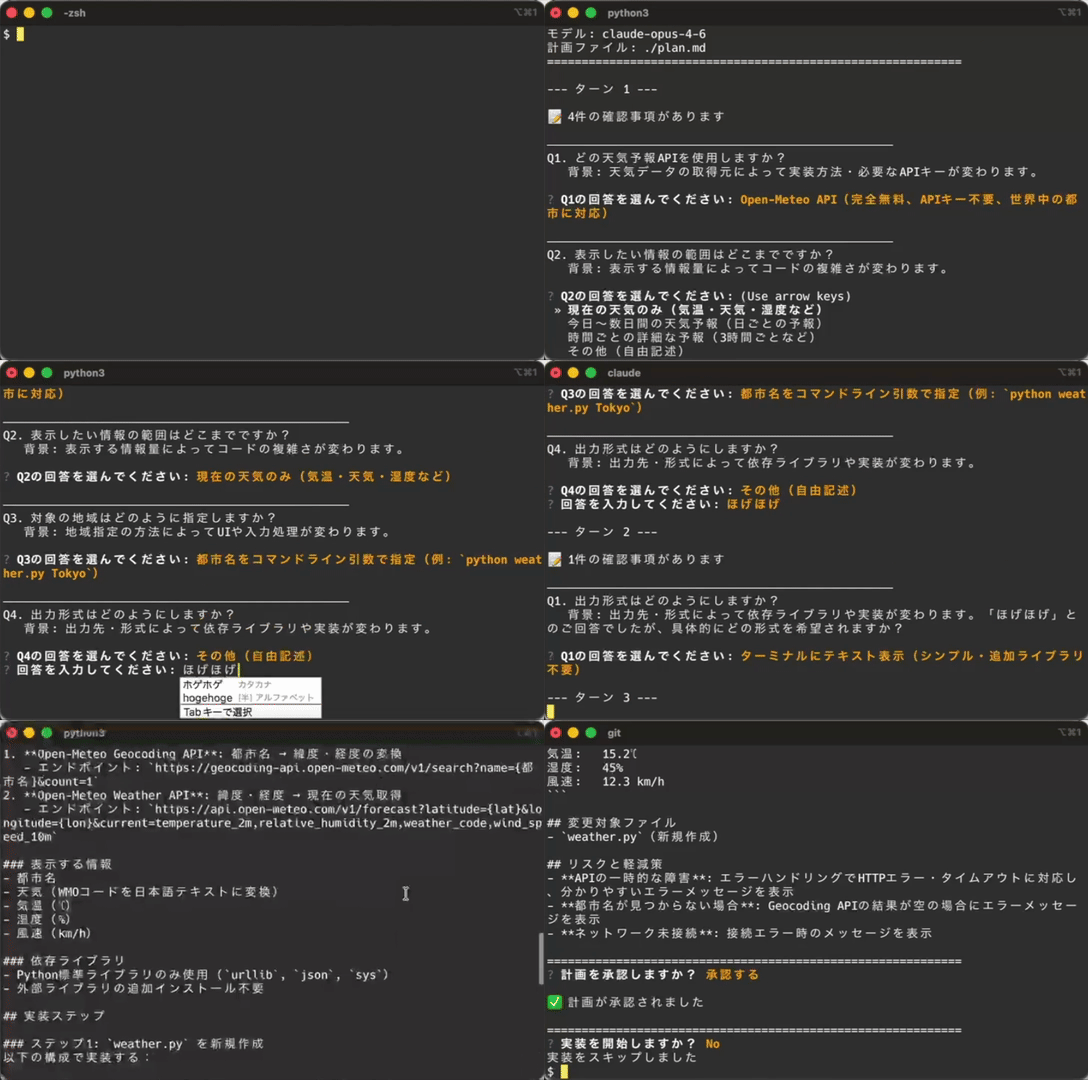
Some waiting time during thinking has been cut from this video. In practice, responses take a bit longer.
Conclusion
In this article, I recreated the equivalent of Claude Code’s Plan Mode in a custom AI Agent using the Claude Agent SDK. When you actually implement it, you realize that since question generation is handled by the LLM, all you need to do is handle the output — there’s nothing particularly difficult involved. The Plan Mode mechanism itself is a combination of mature technologies: prompt engineering and file-based state management. Functionality equivalent to Claude Code’s dedicated tools like AskUserQuestion and ExitPlanMode can be achieved simply through structured output formatting and prompt design.
Since this approach only defines the overall processing flow and I/O, whether it can produce a good plan ultimately depends on the LLM’s reasoning capabilities. How clearly a user can convey their vision of the finished product and provide context will be a major factor influencing the quality of the Agent’s plans.