GPU Experiment Job Management with pueue
This article was automatically translated from Japanese by AI.
In data competitions like Kaggle and atmaCup, efficiently running GPU-based training and inference experiments requires keeping the GPU busy at all times. Manually submitting experiments one by one inevitably leads to idle time. By queuing up multiple experiments in advance so that the next one starts automatically when the previous one finishes, you can maximize GPU utilization.
In this post, I’ll explain how to manage GPU allocation in a local environment using a job management tool called pueue. Note that this focuses on GPU training on a single server and does not cover situations where multiple instances can be flexibly used in cloud environments or on Colab.
About pueue
pueue is a job management tool written in Rust. It is designed to run standalone for a single user, and its key strength is lightweight operation with a simple feature set. You run a daemon called pueued, and when you submit jobs via the pueue command, they are automatically executed according to priority and parallelism settings.
🌠 Manage your shell commands.
Here are the main features of pueue:
- Terminal-independent: Since it runs as a daemon, jobs continue executing even if you close the terminal. You can add tasks and check their status from a different terminal.
- Parallelism control: You can specify the number of tasks to run simultaneously. For GPU experiments, limiting parallelism to 1 prevents GPU contention and VRAM OOM errors caused by multiple tasks.
- Group functionality: Tasks can be organized into groups, with parallelism controlled per group. If you have multiple GPUs, you can manage separate queues for each GPU.
- Priority and task ordering: You can set task priorities and reorder tasks within the queue.
pueue in Action
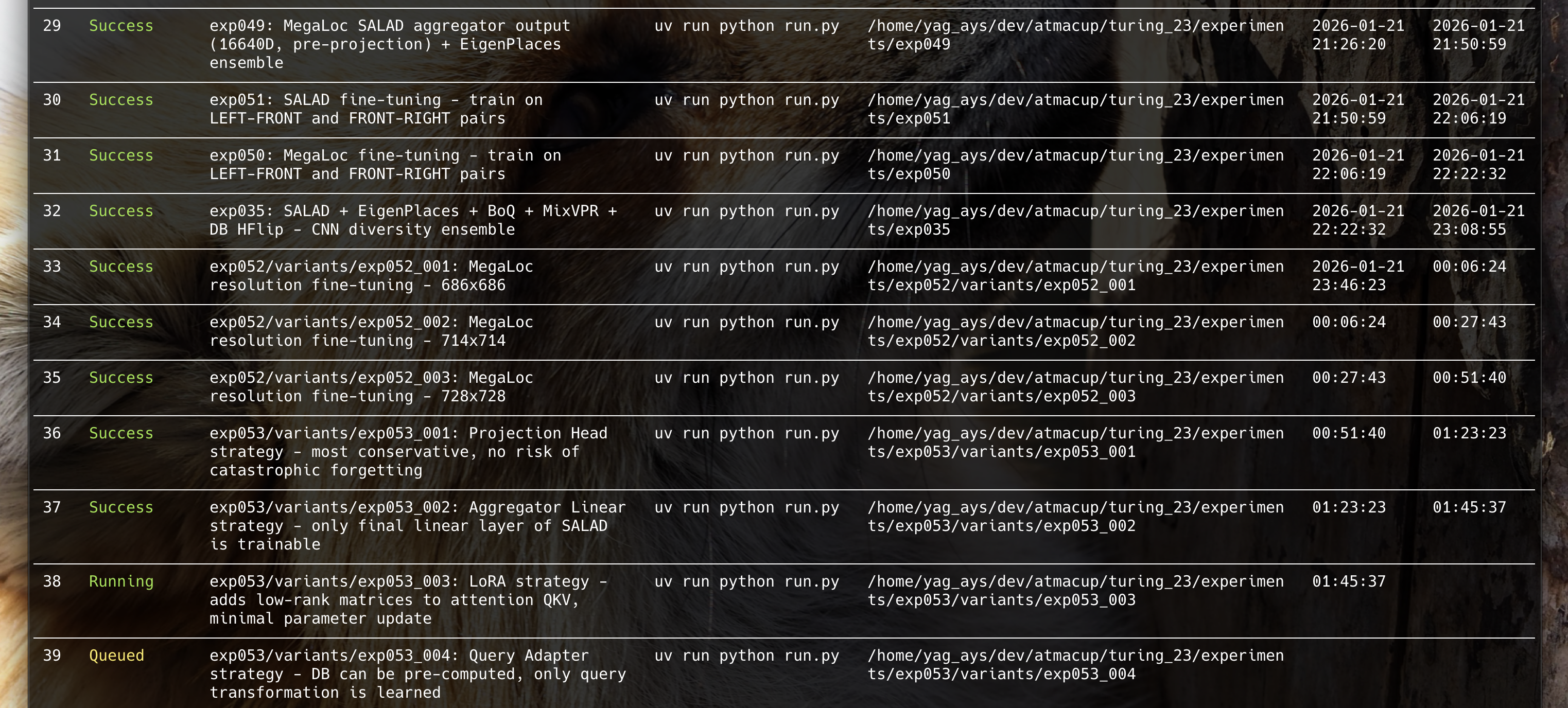
Here’s what it looks like when I’m actually using it for experiment management. I include the experiment ID and a brief summary in the label, making it easy to track experiment progress.
Basic Commands
Adding Tasks (add)
Use the add command to add tasks to the queue.
pueue add "uv run python experiments/exp001/run.py"
By adding multiple tasks, they are automatically executed sequentially.
pueue add "uv run python experiments/exp001/run.py"
pueue add "uv run python experiments/exp002/run.py"
pueue add "uv run python experiments/exp003/run.py"
Checking Status (status)
Use the status command to check the current state of tasks.
pueue status
This displays each task’s ID, state (Queued, Running, Done, etc.), and command.
Removing Tasks (remove)
Use the remove command to delete tasks from the queue.
pueue remove 3 # Remove task ID 3
Viewing Results (log)
Use the log command to view the output of completed tasks.
pueue log 1     # Show log for task ID 1
pueue log       # Show the latest log
Real-time Monitoring (follow)
Use the follow command to monitor the output of a running task in real time. It behaves like tail -f, and properly displays progress bars from tools like tqdm.
pueue follow 1 # Stream output of task ID 1 in real time
Cleaning Up Completed Tasks (clean)
Use the clean command to remove completed tasks from the list.
pueue clean # Remove all completed tasks
GPU Parallelism Control
By creating groups corresponding to each GPU and limiting each group’s parallelism to 1, you can control job submission across multiple GPUs. Combined with CUDA_VISIBLE_DEVICES when adding tasks, you can distribute jobs to specific GPUs. Note that I haven’t personally verified this setup, as I don’t have multiple GPUs.
Controlling Execution Order with Priority
When running experiments, you’ll often find yourself wanting to try a particular experiment first. pueue supports setting priorities and reordering tasks.
Adding Tasks with Priority
Use the --priority option to specify a priority. Higher values are executed first.
pueue add --priority 10 "uv run python experiments/exp004/run.py"
pueue add --priority 1 "uv run python experiments/exp005/run.py"
Reordering Tasks (switch)
Use the switch command to swap the positions of tasks already in the queue.
pueue switch 3 5 # Swap positions of task ID 3 and 5
Stashing and Restoring
To temporarily put a pending task on hold, use stash. To restore it, use enqueue.
pueue stash 4     # Put task ID 4 on hold
pueue enqueue 4   # Remove the hold and return to queue
Notifications via Callbacks
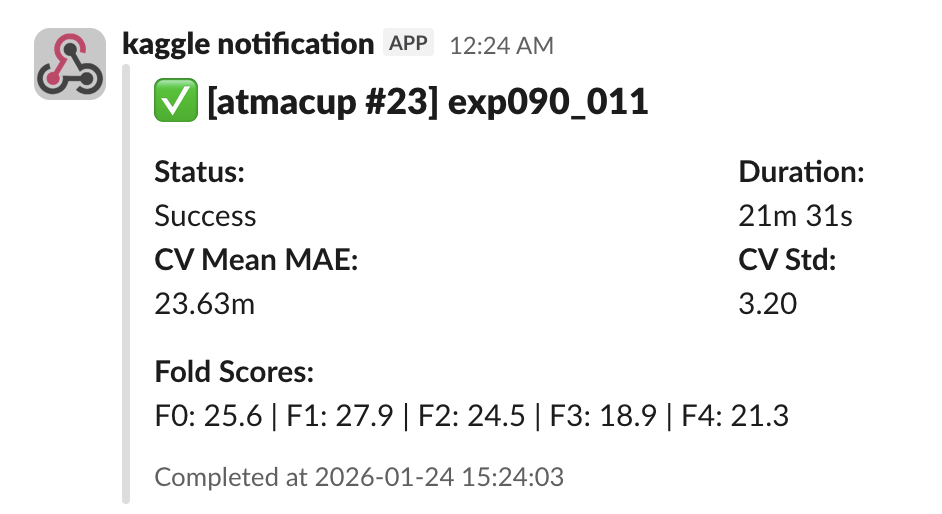
pueue lets you configure a callback to run any command when a job finishes. Since job-related information is also available, you can send notifications to Slack that include the experiment ID and evaluation metrics. However, pueue only supports a single callback command globally, so if you need to handle multiple competitions, it’s best to use an intermediary dispatch script.
In my case, I set up Slack Webhook notifications that fire when an experiment completes, looking like this:
Conclusion
I find pueue to be a great fit for local job management thanks to its simplicity and ease of use. Since it’s a CLI tool, it can also be easily operated by AI agents like Claude Code, which makes it a great match for modern workflows.